

Sharing your connection and putting your music on the lock screen are the two I am happy about this time. Bluetooth also went from barely working to something I actually use day to day, and a pile of smaller things got fixed along the way.
Share your connection
This is the big new one. Singularity can turn its connection into a hotspot now, and it can hand internet to a device plugged in by cable. Both lean on NetworkManager doing the hard part, the NAT and the DHCP, so I am not reinventing any of that, just exposing it cleanly.
The Wi-Fi hotspot is WPA2 by default, with a WPA3 switch for newer devices only, and it remembers the name and password you set. There is a quick tile for it too, so you can flip it on without opening the whole settings.
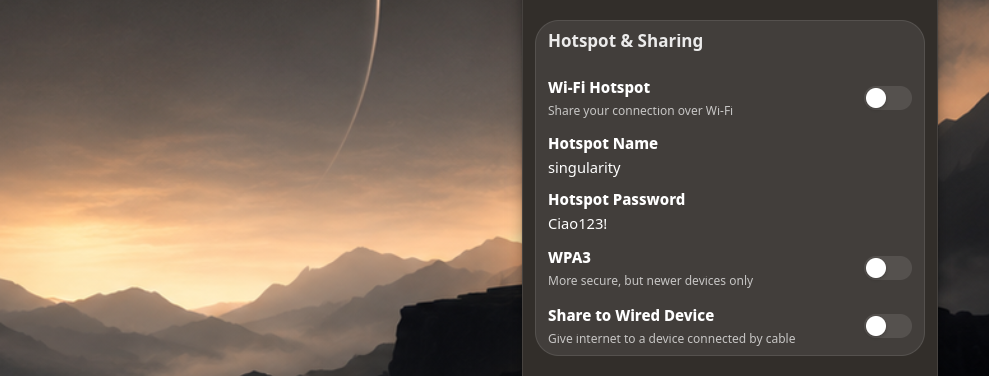
The honest caveat is hardware: one Wi-Fi card cannot be a client and a hotspot at the same time, so if that is your only radio, turning on the hotspot disconnects your current Wi-Fi, and I warn you before it does. But if you have a second Wi-Fi adapter, even a cheap USB one, the hotspot runs on the free radio and your normal connection keeps going, Wi-Fi in and Wi-Fi out at once. And if your internet is coming from a phone over USB tethering, sharing that out over Wi-Fi just works, since the two are on different radios entirely (github.com/…/issues/217).
Your music on the lock screen
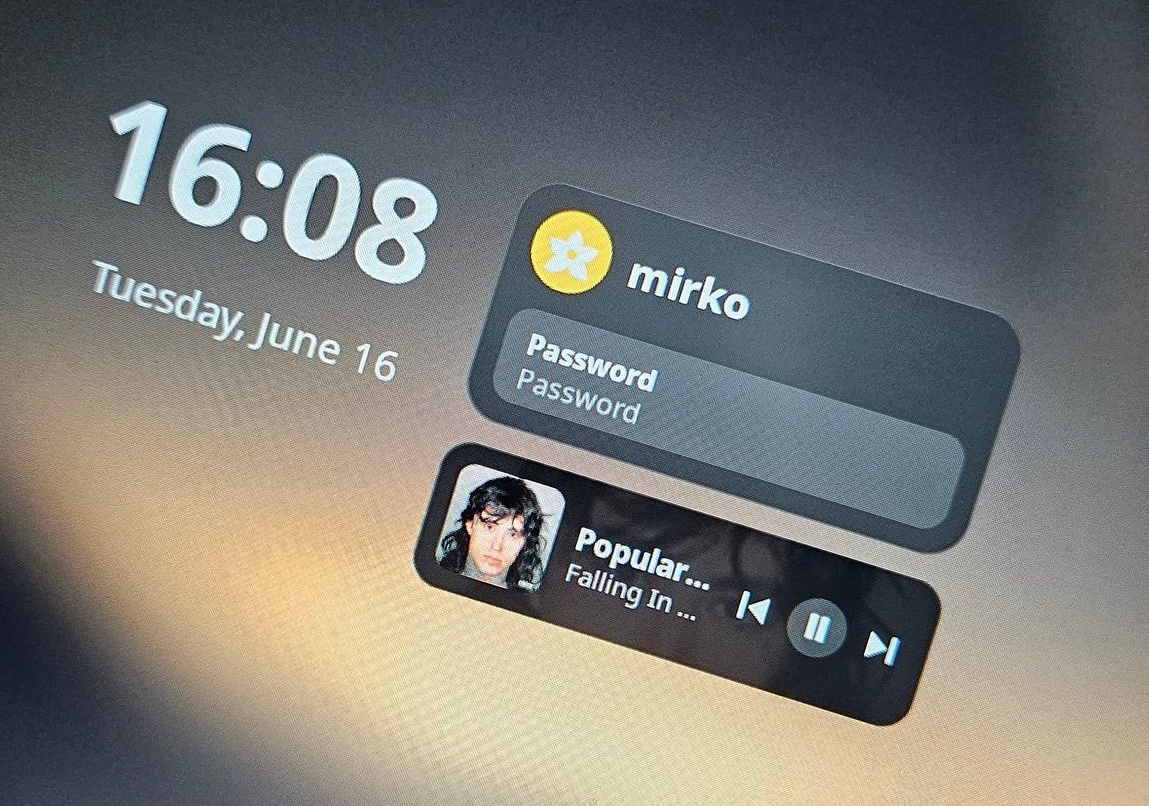
The lock screen shows what is playing now: the cover, the title, the artist, and the controls to go back, play or pause, and skip. The layout follows the media widget in the sidebar so it feels like the same thing, even if they are not sharing the same codebase nor development stack, while the shell is written in Gtk, the lockscreen uses Cairo, this is the best way to avoid patching or relying on hacks to bend a toolkit window into a session-lock surface, the locker is a small client that draws itself directly on ext-session-lock-v1, so it sits on the proper Wayland layer without fighting anything.
The cover art is the nice bit. Rather than have the locker download anything while the screen is locked, the shell keeps the current cover cached on disk, and the locker just reads it. The art arrives without the locker ever touching the network (github.com/…/issues/216).
Bluetooth that behaves
Last time I said Bluetooth was next, the toggle and connecting and the device list. It is done, and it went further than I planned.
It connects, and the list actually updates now instead of going stale after a few seconds. The old bug was that a freshly discovered device with no name yet was thrown away, so new things never showed up (github.com/…/issues/176, github.com/…/issues/178).
Under that sits the plumbing that makes connecting work at all, which landed quietly without a mention: a pairing agent that can answer the pairing prompt, a power toggle that actually toggles, and pairing and trusting a device in one step when you connect. None of the rest would matter without it.
On top of that the page tells you what is happening. When you tap connect you get a spinner on that row instead of having to stare at your phone and hope. The quick tile names the device you are connected to, not just “on”. And Disconnect and Forget work now, they were being quietly eaten because the whole list rebuilt itself every time a signal-strength reading came in, which destroyed the button under your finger before the click landed.
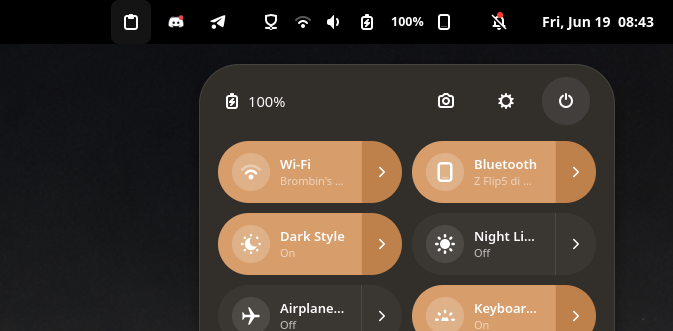
Then the part I had fun with. There is a small indicator in the top bar, to the right of the battery, that appears when a device is connected and shows what kind of thing it is, a phone, headphones, a mouse. It opens the control center when you click it. And when you are on a call it turns into a green pill. Knowing you are on a call is the tricky bit: I use the phone state from oFono when it is there, and otherwise fall back to reading the audio profile, since a voice call flips the connection to the headset profile.
One thing I have not cracked yet, and I would rather flag it than hide it: every so often the Wi-Fi and Bluetooth toggles start flickering between on and off in a loop. I am still digging into what sets it off, so if it happens to you, you are not imagining it, it is on my list.
The dock, again
The window previews I shipped opt-in last time got the polish they were missing, and the dock picked up a couple of genuinely new things on top:
- They show reliably on hover, with a short dwell before they appear so they do not flash at you, a proper hover effect, and they fade out faster than before (github.com/…/issues/192, github.com/…/issues/194, github.com/…/issues/196, github.com/…/issues/198).
- The close button on a preview is sized right now, and a slide animation was added (github.com/…/issues/197, github.com/…/issues/199).
- They stop lingering when you move to another icon, and they dismiss on right click (github.com/…/issues/193, github.com/…/issues/215).
- Clicking the icon of an app with several windows open rotates through them (github.com/…/issues/200).
- The dock comes back after a fullscreen app even in autohide (github.com/…/issues/209).
- And you can now turn the dock off entirely if you do not want one (github.com/…/issues/207).
One thing I will be upfront about: the previews are single snapshots, not live video. Real-time captures are expensive, and the same is true for the alt-tab and workspace views. I may add an optional live mode later, but I am not sure yet.
Sharper around the edges
A batch of things that were rough rather than broken, most of which never got a mention because they slipped in around the last post:
- The alt-tab switcher and the app launcher were the wrong size, and the top bar used to go dead while a fullscreen app was open in any workspace. The switcher and launcher are sized right now, and the panel stays interactive and follows the focused window even over a fullscreen one.
- When an app exposes nothing to scrape for its menu, the global menu falls back to the actions in its desktop entry instead of showing an empty bar, so more apps get at least a basic menu.
- Login is a bit more solid: the shell no longer waits on the desktop portal restarting before it comes up.
Files, and the small stuff
- The disk page entries no longer overlap the window buttons (github.com/…/issues/201).
- You can make the icons bigger and smaller in Files (github.com/…/issues/203).
- Two stray white dots are gone from the path bar, and a few elements in the picker and manager that were the wrong size match the rest now (github.com/…/issues/204, github.com/…/issues/205).
- Picking a disk in the sidebar actually selects it now instead of leaving the old one highlighted, and the file picker’s Cancel button works.
- The emoji picker has a hover effect (github.com/…/issues/206).
- Firefox’s global menu still leaked through under some conditions, it does not anymore (github.com/…/issues/182).
- The right-click menu had two “New Window” entries and one did nothing in most apps, now there is one and it opens a new window (github.com/…/issues/191, github.com/…/issues/213).
- The Cloudflare WARP tray icon showed up as a missing image, now it finds its icon (github.com/…/issues/208).
- Flatpaks can see the “Wallpaper Color” accent now instead of falling back (github.com/…/issues/165).
- And some plumbing: the greeter setup creates the greetd user and exports the library path so it actually starts on a fresh install, and the terminal got redraw and paste fixes.
Still on it
A few are written but I am still testing before I trust them: the system tray icons that sometimes do not show up on first boot, and the light square corners that still creep into some menus and popups. And carried over from last time, the pixelated fonts in some Java and screen recording apps, and the global menu for LibreOffice and a couple of Firefox cases.
If you run Singularity and something is off, tell me, open an issue on GitHub or find me on Discord. The reports from machines that are not mine are what keep this honest.